
Come installare e configurare Prometheus su Linux? (Ubuntu e CentOS)
Pubblicato: 2019-08-26
Cos'è Prometeo?
Prometheus è un sistema di monitoraggio di livello mondiale che viene fornito con il database delle serie temporali come predefinito. È un sistema open source originariamente costruito nell'anno 2012.
Le prime 500 aziende del mondo hanno utilizzato Prometheus per raccogliere parametri per la loro infrastruttura e applicazione. Prometheus supporta il modello di dati multidimensionale con dati di serie temporali identificati principalmente come metriche.
Non sono richiesti requisiti speciali per la memorizzazione dei dati poiché Prometheus utilizza Time Series DB (TSDB) parte della propria installazione.
In questo tutorial installeremo Prometheus su Linux Ubuntu e CentOS con semplicissimi passaggi.
Iniziamo:
Passaggio 1: verifica della versione del sistema operativo Linux
Comando: cat /etc/os-release
|
1 2 3 4 5 6 7 8 9 10 11 12 13 |
root @ localhost : ~ # cat /etc/os-release NAME = "Ubuntu" VERSION = "19.04 (Disco Dingo)" ID = ubuntu ID_LIKE = debian PRETTY_NAME = "Ubuntu 19.04" VERSION_ID = "19.04" HOME_URL = "https://www.ubuntu.com/" SUPPORT_URL = "https://help.ubuntu.com/" BUG_REPORT_URL = "https://bugs.launchpad.net/ubuntu/" PRIVACY_POLICY_URL = "https://www.ubuntu.com/legal/terms-and-policies/privacy-policy" VERSION_CODENAME = disco UBUNTU_CODENAME = disco |
I passaggi seguenti si applicano al Ubuntu Linux OS .
Passaggio 2: crea i dati di Prometheus e la cartella di configurazione
Comandi :
|
1 2 3 |
root @ localhost : ~ # sudo mkdir /crunchify/prometheus/conf root @ localhost : ~ # sudo mkdir /crunchify/prometheus/data |
Verifichiamo entrambe le cartelle:
|
1 2 3 4 5 6 7 8 9 |
root @ localhost : / crunchify / prometheus # pwd / crunchify / prometheus root @ localhost : / crunchify / prometheus # ls -ltra total 16 drwxr - xr - x 2 root root 4096 Aug 25 23 : 37 conf drwxr - xr - x 3 root root 4096 Aug 25 23 : 37 . . drwxr - xr - x 2 root root 4096 Aug 25 23 : 37 data drwxr - xr - x 4 root root 4096 Aug 25 23 : 37 . |
Passaggio 3 Modificare la proprietà della cartella Dati
Ciò è necessario per evitare problemi di autorizzazione nei passaggi successivi.
|
1 |
root @ localhost : / crunchify / prometheus # sudo chown 65534:65534 /crunchify/prometheus/data/ |
Passaggio 4 Crea il file prometeus.yml
Vai alla cartella /crunchify/prometheus/conf e crea il file prometheus.yml .
|
1 2 3 |
root @ localhost : / # cd /crunchify/prometheus/conf root @ localhost : / crunchify / prometheus / conf # vi prometheus.yml |
contenuto del file prometeus.yml:
|
1 2 3 4 5 6 7 8 9 10 11 12 13 14 15 16 17 18 19 20 21 22 23 24 25 26 27 28 29 |
# my global config global : scrape_interval : 15s # Set the scrape interval to every 15 seconds. Default is every 1 minute. evaluation_interval : 15s # Evaluate rules every 15 seconds. The default is every 1 minute. # scrape_timeout is set to the global default (10s). # Alertmanager configuration alerting : alertmanagers : - static_configs : - targets : # - alertmanager:9093 # Load rules once and periodically evaluate them according to the global 'evaluation_interval'. rule_files : # - "first_rules.yml" # - "second_rules.yml" # A scrape configuration containing exactly one endpoint to scrape: # Here it's Prometheus itself. scrape_configs : # The job name is added as a label `job=<job_name>` to any time series scraped from this config. - job_name : 'prometheus' # metrics_path defaults to '/metrics' # scheme defaults to 'http'. static_configs : - targets : [ '65.19.71.11:9090' ] |
Note: nel file sopra: sostituisci IP con l'IP host/VM.
Ecco una Directory structure per questo tutorial:

Passaggio 5 Assicurati di aver installato Docker sulla tua macchina virtuale.
Come verificare se Docker è installato o meno?
|
1 2 3 |
root @ localhost : ~ # docker Command 'docker' not found |
Ciò significa che la finestra mobile non è installata sul tuo host/VM. Segui completamente il tutorial di installazione di Docker per installare Docker sul tuo host/VM.
Passaggio 6 Installa Docker Compose
Pre-requisiteè installare Docker prima di eseguire i passaggi seguenti. (Passo-5)
Esegui sotto i tre comandi:
|
1 2 3 4 5 6 7 8 9 |
root @ localhost : ~ # sudo curl -L "https://github.com/docker/compose/releases/download/1.24.1/docker-compose-$(uname -s)-$(uname -m)" -o /usr/local/bin/docker-compose % Total % Received % Xferd Average Speed Time Time Time Current Dload Upload Total Spent Left Speed 100 617 0 617 0 0 2448 0 -- : -- : -- -- : -- : -- -- : -- : -- 2448 100 15.4M 100 15.4M 0 0 11.2M 0 0 : 00 : 01 0 : 00 : 01 -- : -- : -- 15.7M root @ localhost : ~ # sudo chmod +x /usr/local/bin/docker-compose root @ localhost : ~ # sudo ln -s /usr/local/bin/docker-compose /usr/bin/docker-compose |
Passaggio 7: verifica della versione Docker Componi
|
1 2 3 |
root @ localhost : ~ # docker-compose --version docker - compose version 1.24.1 , build 4667896b |
Congratulazioni: Docker Compose è stato installato correttamente sulla tua macchina virtuale.
Passaggio 8 Crea il file docker-compose.yml
Vai alla cartella /crunchify/prometheus.
|
1 2 3 |
root @ localhost : / crunchify # cd /crunchify/prometheus/ root @ localhost : / crunchify / prometheus # vi docker-compose.yml |
contenuto del file docker-compose.yml:
|
1 2 3 4 5 6 7 8 9 10 11 12 13 14 |
version : "3" services : prometheus : image : prom / prometheus : latest container_name : prometheus volumes : - / crunchify / prometheus / conf : / etc / prometheus - / crunchify / prometheus / data : / prometheus command : - '--config.file=/etc/prometheus/prometheus.yml' - '--storage.tsdb.path=/prometheus' ports : - "9090:9090" |
Passaggio 9: installare Prometheus Start/Stop come parte del controllo del sistema.
Crea il file vi /etc/systemd/system/prometheus.service
contenuto del file prometeus.service:
|
1 2 3 4 5 6 7 8 9 10 11 12 13 14 15 16 17 |
[ Unit ] Description = Prometheus monitoring docker container After = docker . service BindsTo = docker . service [ Service ] Restart = always WorkingDirectory =/ crunchify / prometheus / # Ubuntu ExecStart =/ usr / bin / docker - compose up ExecStop =/ usr / bin / docker - compose down # CentOS #ExecStart=/usr/bin/docker-compose up #ExecStop=/usr/bin/docker-compose down [ Install ] WantedBy = multi - user . target |

Passaggio 10 Avvia il servizio Prometheus
|
1 2 3 4 5 6 |
root @ localhost : / crunchify / prometheus / config # sudo systemctl daemon-reload root @ localhost : / crunchify / prometheus / config # sudo systemctl enable prometheus Created symlink / etc / systemd / system / multi - user . target . wants / prometheus . service → / etc / systemd / system / prometheus . service . root @ localhost : / crunchify / prometheus / config # sudo systemctl start prometheus |
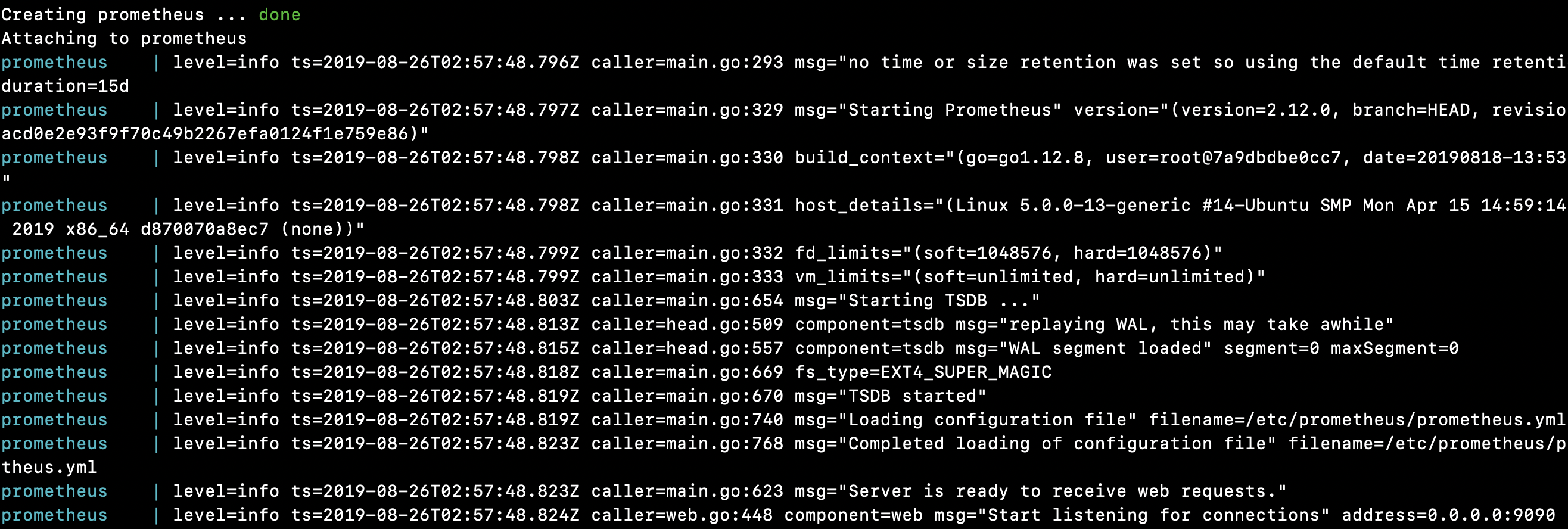
Server Prometheus avviato su Linux:
|
1 2 3 4 5 6 7 8 9 10 11 12 13 14 15 16 17 18 19 20 21 22 23 24 25 26 27 28 29 30 31 32 |
root @ localhost : / crunchify / prometheus # sudo systemctl start prometheus Creating network "prometheus_default" with the default driver Pulling prometheus ( prom / prometheus : latest ) . . . latest : Pulling from prom / prometheus 8e674ad76dce : Pull complete e77d2419d1c2 : Pull complete d7c0a2a2ca7e : Pull complete bd46de67c79d : Pull complete 35f6078df7e9 : Pull complete 8b3f04e26151 : Pull complete 9d234d9c8a77 : Pull complete 1a8a2a4f314d : Pull complete 62e28fd716ec : Pull complete Digest : sha256 : cd93b8711bb92eb9c437d74217311519e0a93bc55779aa664325dc83cd13cb32 Status : Downloaded newer image for prom / prometheus : latest Creating prometheus . . . done Attaching to prometheus prometheus | level = info ts = 2019 - 08 - 26T02 : 57 : 48.796Z caller = main . go : 293 msg = "no time or size retention was set so using the default time retention" duration = 15d prometheus | level = info ts = 2019 - 08 - 26T02 : 57 : 48.797Z caller = main . go : 329 msg = "Starting Prometheus" version = "(version=2.12.0, branch=HEAD, revision=43acd0e2e93f9f70c49b2267efa0124f1e759e86)" prometheus | level = info ts = 2019 - 08 - 26T02 : 57 : 48.798Z caller = main . go : 330 build_context = "(go=go1.12.8, user=root@7a9dbdbe0cc7, date=20190818-13:53:16)" prometheus | level = info ts = 2019 - 08 - 26T02 : 57 : 48.798Z caller = main . go : 331 host_details = "(Linux 5.0.0-13-generic #14-Ubuntu SMP Mon Apr 15 14:59:14 UTC 2019 x86_64 d870070a8ec7 (none))" prometheus | level = info ts = 2019 - 08 - 26T02 : 57 : 48.799Z caller = main . go : 332 fd_limits = "(soft=1048576, hard=1048576)" prometheus | level = info ts = 2019 - 08 - 26T02 : 57 : 48.799Z caller = main . go : 333 vm_limits = "(soft=unlimited, hard=unlimited)" prometheus | level = info ts = 2019 - 08 - 26T02 : 57 : 48.803Z caller = main . go : 654 msg = "Starting TSDB ..." prometheus | level = info ts = 2019 - 08 - 26T02 : 57 : 48.813Z caller = head . go : 509 component = tsdb msg = "replaying WAL, this may take awhile" prometheus | level = info ts = 2019 - 08 - 26T02 : 57 : 48.815Z caller = head . go : 557 component = tsdb msg = "WAL segment loaded" segment = 0 maxSegment = 0 prometheus | level = info ts = 2019 - 08 - 26T02 : 57 : 48.818Z caller = main . go : 669 fs_type = EXT4_SUPER_MAGIC prometheus | level = info ts = 2019 - 08 - 26T02 : 57 : 48.819Z caller = main . go : 670 msg = "TSDB started" prometheus | level = info ts = 2019 - 08 - 26T02 : 57 : 48.819Z caller = main . go : 740 msg = "Loading configuration file" filename =/ etc / prometheus / prometheus . yml prometheus | level = info ts = 2019 - 08 - 26T02 : 57 : 48.823Z caller = main . go : 768 msg = "Completed loading of configuration file" filename =/ etc / prometheus / prometheus . yml prometheus | level = info ts = 2019 - 08 - 26T02 : 57 : 48.823Z caller = main . go : 623 msg = "Server is ready to receive web requests." prometheus | level = info ts = 2019 - 08 - 26T02 : 57 : 48.824Z caller = web . go : 448 component = web msg = "Start listening for connections" address = 0.0.0.0 : 9090 |
Congratulazioni!! Hai avviato con successo Prometeo sul tuo host.
Giochiamo con il dashboard e l'interfaccia utente di Prometheus
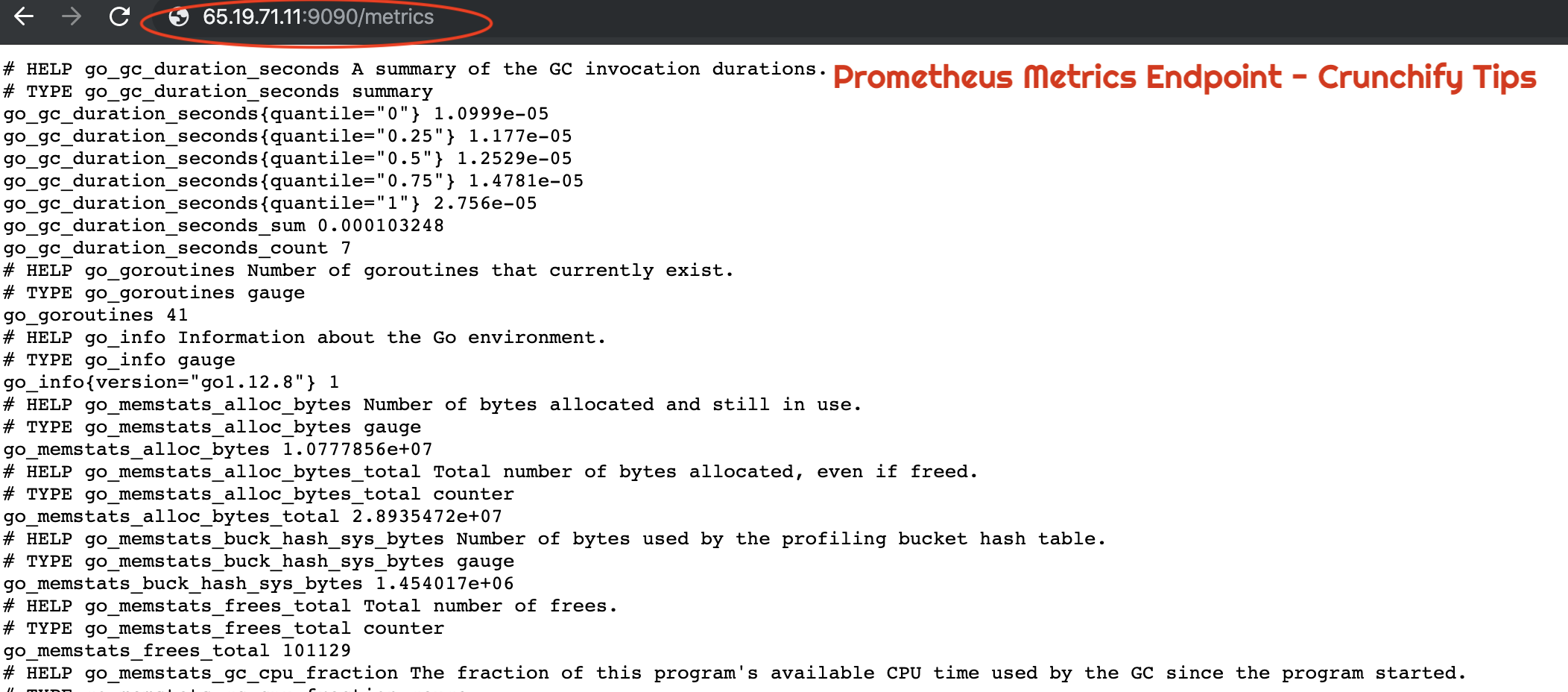
Come verificare se Prometheus funziona correttamente o meno?
|
1 |
URL : http : //65.19.71.11:9090/metrics |
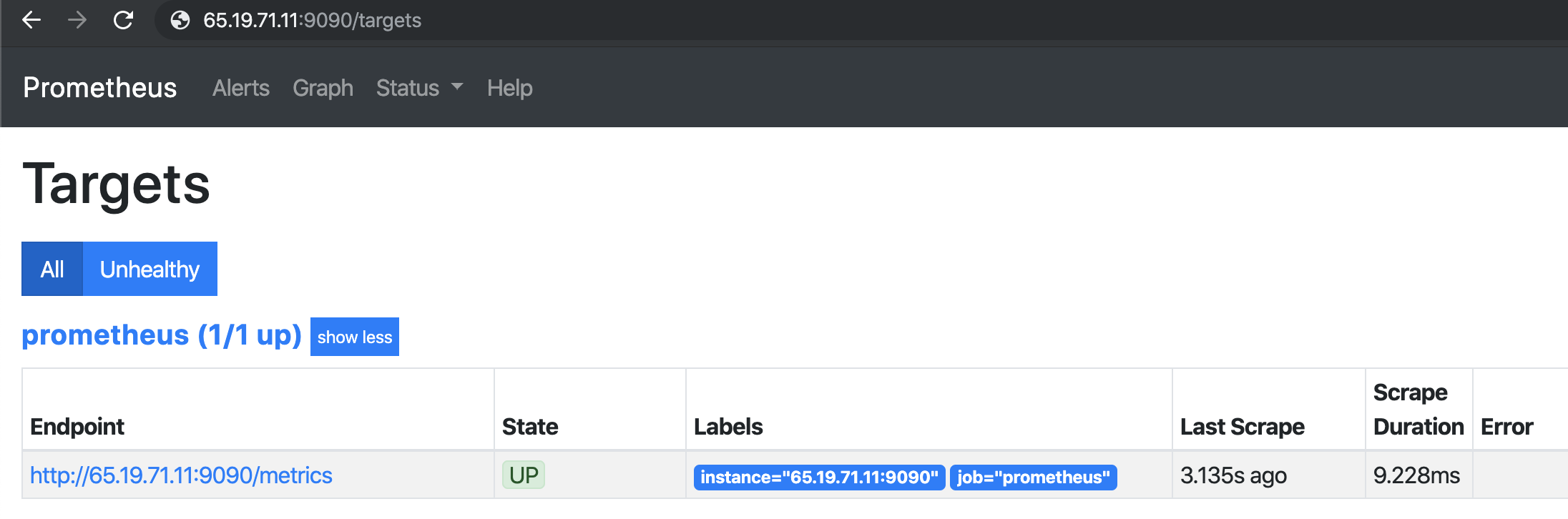
Come verificare lo stato UP dell'host o della VM utilizzando Prometheus?
|
1 |
URL : http : //65.19.71.11:9090/targets |
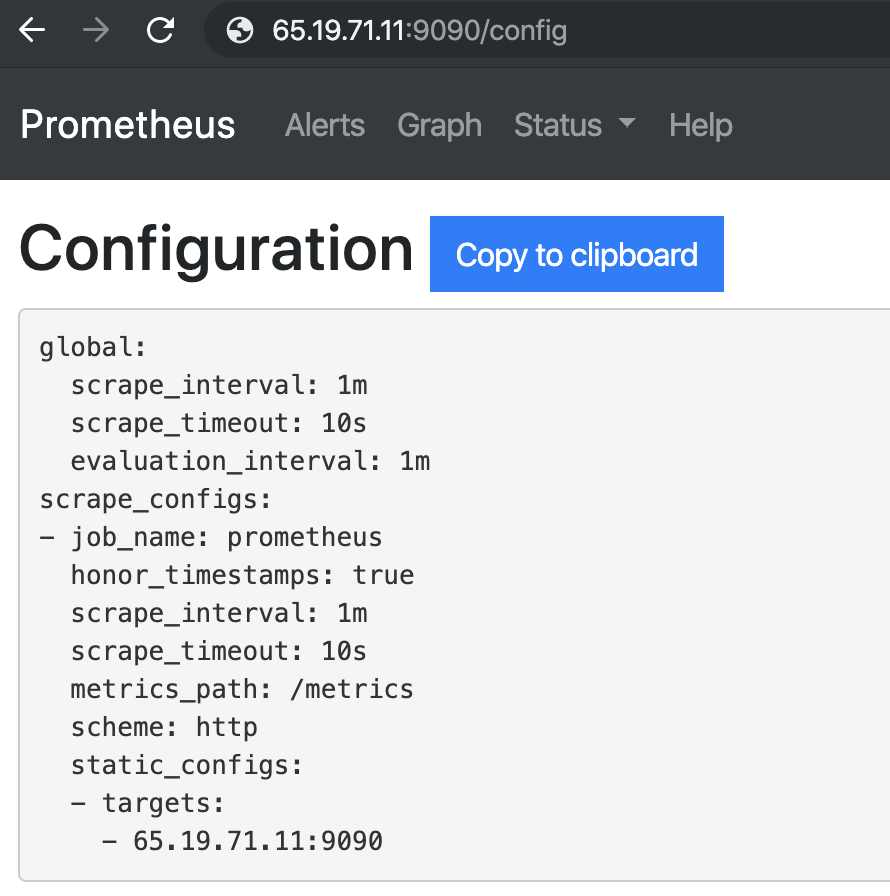
Come controllare la configurazione di Prometeo sul browser?
Informazioni sul runtime di Prometeo
|
1 |
URL : http : //65.19.71.11:9090/status |
| Tempo di attività | 2019-08-26 03:07:24.244852166 +0000 UTC |
|---|---|
| Directory di lavoro | /Prometeo |
| Ricarica configurazione | Riuscito |
| Ultimo ricaricamento della configurazione riuscito | 2019-08-26 03:07:24 +0000 UTC |
| Pezzi di testa | 533 |
| Serie storica di testa | 533 |
| Corruzioni WAL | 0 |
| Goroutine | 36 |
| GOMAX PROC | 1 |
| GOGC | |
| GODEBUG | |
| Conservazione della memoria | 15d |
Informazioni sulla costruzione di Prometeo
| Versione | 2.12.0 |
|---|---|
| Revisione | 43acd0e2e93f9f70c49b2267efa0124f1e759e86 |
| Ramo | TESTA |
| BuildUser | root@7a9dbdbe0cc7 |
| Data di costruzione | 20190818-13:53:16 |
| Versione Go | vai1.12.8 |
Bandiere della riga di comando di Prometeo:
|
1 |
URL : http : //65.19.71.11:9090/flags |
| alertmanager.notification-coda-capacità | 10000 |
|---|---|
| alertmanager.timeout | 10s |
| config.file | /etc/prometheus/prometheus.yml |
| log.formato | logfmt |
| livello.log | Informazioni |
| query.lookback-delta | 5m |
| query.max-concorrenza | 20 |
| campioni di query.max | 50000000 |
| query.timeout | 2m |
| avviso.regole.per-periodo di grazia | 10 m |
| avviso.regole.per-tolleranza-interruzione | 1 ora |
| regole.alert.resend-delay | 1 m |
| scadenza.risciacquo.remoto | 1 m |
| storage.remote.read-concurrent-limit | 10 |
| storage.remote.read-sample-limit | 50000000 |
| storage.tsdb.allow-overlapping-blocks | falso |
| storage.tsdb.max-block-duration | 36 ore |
| storage.tsdb.min-block-duration | 2h |
| storage.tsdb.no-lockfile | falso |
| percorso.tsdb.archiviazione | /Prometeo |
| storage.tsdb.retention | 0s |
| storage.tsdb.retention.size | 0B |
| tempo.di.ritenzione.tsdb | 0s |
| storage.tsdb.wal-compressione | falso |
| storage.tsdb.wal-segment-size | 0B |
| biblioteche.web.console | console_librerie |
| modelli.di.console.web | console |
| web.cors.origine | .* |
| web.enable-admin-api | falso |
| web.enable-ciclo di vita | falso |
| URL-web.external | |
| indirizzo web.ascolta | 0.0.0.0:9090 |
| connessioni web.max | 512 |
| titolo.pagina web | Server di elaborazione e raccolta di serie storiche Prometheus |
| timeout di lettura web | 5m |
| prefisso web.route | / |
E sei a posto. Hai successfully installed Prometheus e verificato tutte le sue funzionalità.