
缺少 Eclipse 的 Maven settings.xml 文件? 如果您需要 Work 和 Personal Workspace 的两个 settings.xml 文件怎么办?
已发表: 2018-02-19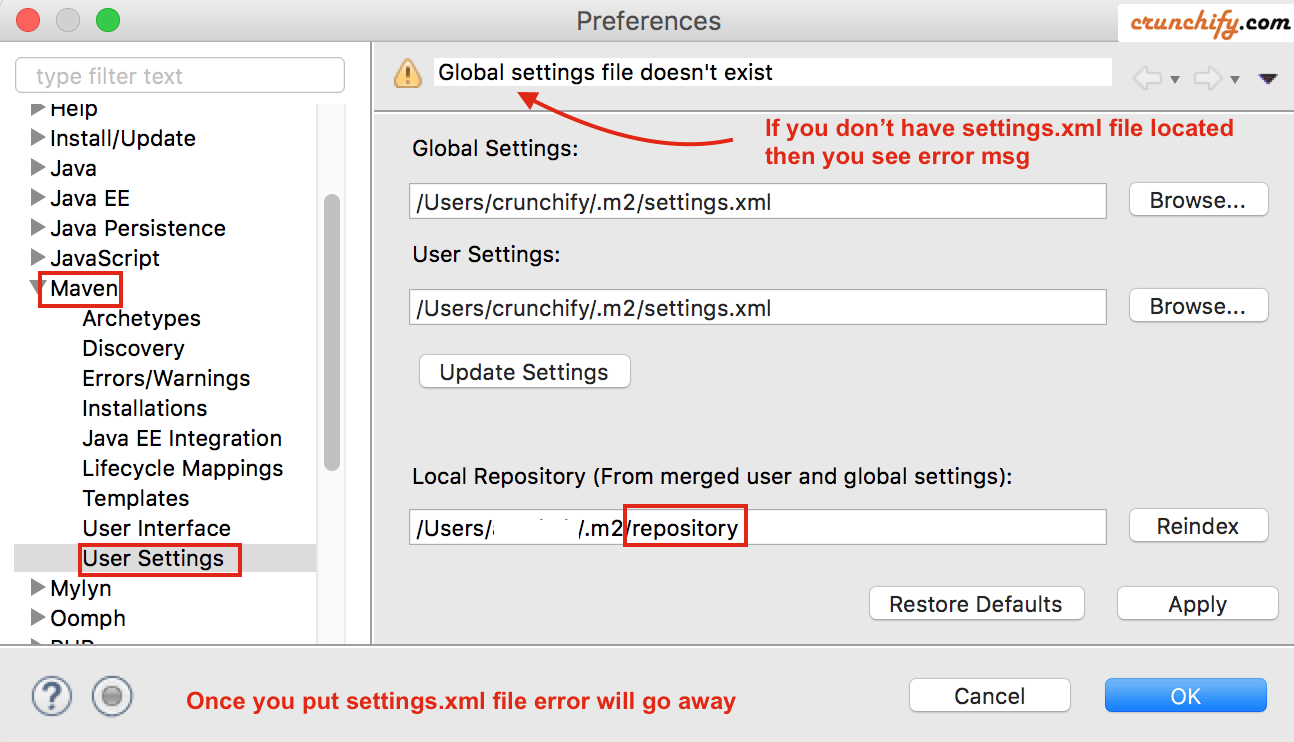
您是否在开发人员工作站上运行多个 Eclipse 环境? 还是在您的笔记本电脑上? 我愿意。 让我们考虑一个场景,其中two different Eclipse workspace具有different custom maven设置。
为什么会这样? 让我们了解一下。
- 如果您的
Work开发环境或框架是基于 Eclipse 的呢? 在公司环境中,您所需项目的所有 .jar 文件都必须位于private存储库中,并且您有自定义settings.xml文件,其中包含非常特定的存储库。 - 另一方面,对于标准的 eclipse/maven 使用——所有
publicmaven 存储库都免费提供给我们,没有任何限制。
当然,我们需要两个不同的settings.xml文件来实现上述用途。 如果您不熟悉 maven 和 eclipse 设置,请按照以下步骤在笔记本电脑/台式机上设置 maven 正确方式。
NOTE:如何在 Eclipse 中添加 settings.xml? 除非您想更改默认设置,否则 settings.xml 不是必需的(因此不会在~/.m2文件夹中自动创建)。 在我们的案例中,我们确实为work和personal工作区设置了不同的设置。
如果您还有以下问题,那么您来对地方了:
- eclipse - 为什么没有 maven settings.xml 文件?
- 如何从 Eclipse 链接到我的 settings.xml 文件
- 使用 Eclipse 和 Maven 开发项目
- m2e 用户 – settings.xml 文件在哪里?
- maven settings.xml文件下载
- eclipse嵌入式maven
- eclipse maven settings.xml 位置
什么是 settings.xml 文件?
settings.xml是一个文件,它提供了maven的所有配置,这些配置在您的 maven 项目的 pom.xml 文件中内部引用。 当您将依赖项添加到pom.xml文件中时,maven 会在内部下载所需的 .jar 文件并将其放在 settings.xml 文件中提到的文件夹下。
我在哪里可以找到 settings.xml 文件?
- Windows 机器:C:\Users\ashah\.m2\settings.xml
- 在 Mac OS X 上:/home/ashah/.m2/settings.xml
settings.xml 文件的默认内容是什么?
只需使用您系统的用户名更新以下文件中的<UserName> 。 这是一个Maven settings.xml 下载文件。
|
1 2 3 4 5 6 7 8 9 10 11 12 13 14 15 16 17 18 19 20 21 22 23 24 25 26 27 28 29 30 31 32 33 34 35 36 37 38 39 40 41 42 43 44 45 46 47 48 49 50 51 52 53 54 55 56 57 58 59 60 61 62 63 64 65 66 67 68 69 70 71 72 73 74 75 76 77 78 79 80 |
<? xml version = "1.0" encoding = "UTF-8" ?> < ! -- | This is the configuration file for Maven . It can be specified at two levels : | | 1. User Level . This settings . xml file provides configuration for a single user , | and is normally provided in $ { user . home } / . m2 / settings . xml . | | NOTE : This location can be overridden with the CLI option : | | - s / path / to / user / settings . xml | | 2. Global Level . This settings . xml file provides configuration for all Maven | users on a machine ( assuming they 're all using the same Maven | installation). It' s normally provided in | $ { maven . home } / conf / settings . xml . | | NOTE : This location can be overridden with the CLI option : | | - gs / path / to / global / settings . xml | | | -- > < settings xmlns = "http://maven.apache.org/SETTINGS/1.0.0" xmlns : xsi = "http://www.w3.org/2001/XMLSchema-instance" xsi : schemaLocation = "http://maven.apache.org/SETTINGS/1.0.0 http://maven.apache.org/xsd/settings-1.0.0.xsd" > < ! -- Change username in below line -- > < localRepository > / Users / ashah / . m2 / repository < / localRepository > < interactiveMode > true < / interactiveMode > < offline > false < / offline > < pluginGroups > < ! -- pluginGroup | Specifies a further group identifier to use for plugin lookup . < pluginGroup > com . your . plugins < / pluginGroup > -- > < / pluginGroups > < proxies > < ! -- < proxy > < id > optional < / id > < active > true < / active > < protocol > http < / protocol > < username > proxyuser < / username > < password > proxypass < / password > < host > proxy . host . net < / host > < port > 80 < / port > < nonProxyHosts > local . net | some . host . com < / nonProxyHosts > < / proxy > -- > < / proxies > < servers > < ! -- < server > < id > deploymentRepo < / id > < username > crunchify < / username > < password > crunchify < / password > < / server > -- > < / servers > < mirrors > < ! -- < mirror > < id > mirrorId < / id > < mirrorOf > repositoryId < / mirrorOf > < name > mirror description < / name > < url > http : //my.repository.com/repo/path</url> < / mirror > -- > < / mirrors > < profiles > < / profiles > < / settings > |
以上是 maven eclipse 的示例 settings.xml。

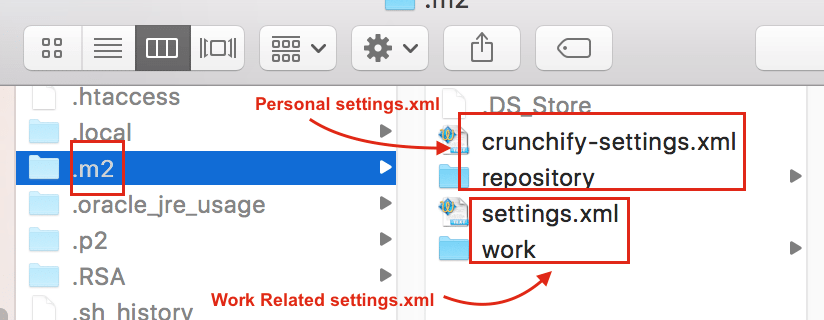
如何将两个不同的 settings.xml 文件用于个人和工作相关的存储库?
第1步
- 转到
~/.m2文件夹 - 放置工作相关的
settings.xml文件并提供localRepository路径: - <localRepository>/Users/<UserName>/.m2/
work</localRepository>
第2步
- 转到
~/.m2文件夹 - 放置本地eclipse相关
crunchify-settings.xml文件并提供localRepository路径: - <localRepository>/Users/<用户名>/.m2/
repository</localRepository>
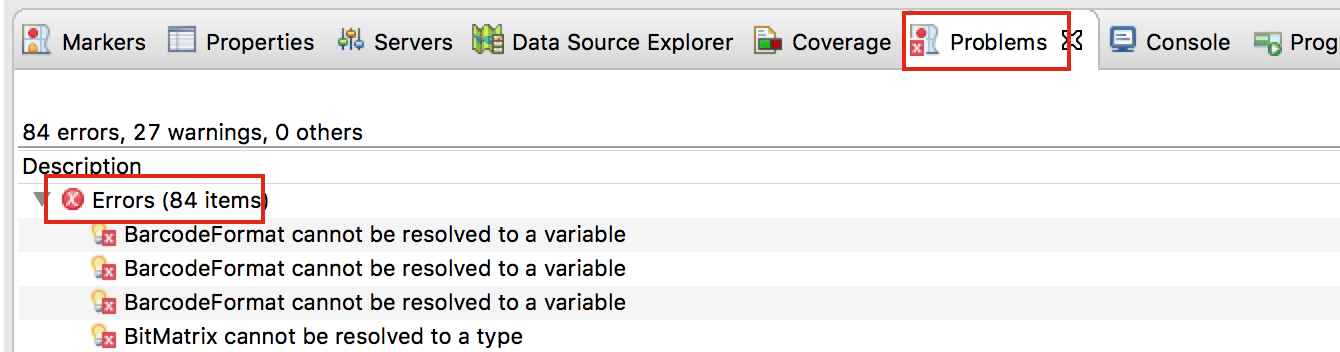
什么是您没有正确的 settings.xml 文件?
Eclipse 抛出许多不同的错误:
一旦你有正确的 settings.xml 文件。 尝试执行以下步骤,所有错误都应该消失。
- 点击
Project菜单 - 单击
Clean...并清理您的项目 - 右键单击项目
- 点击
Maven - 单击
Update Project...(下图)
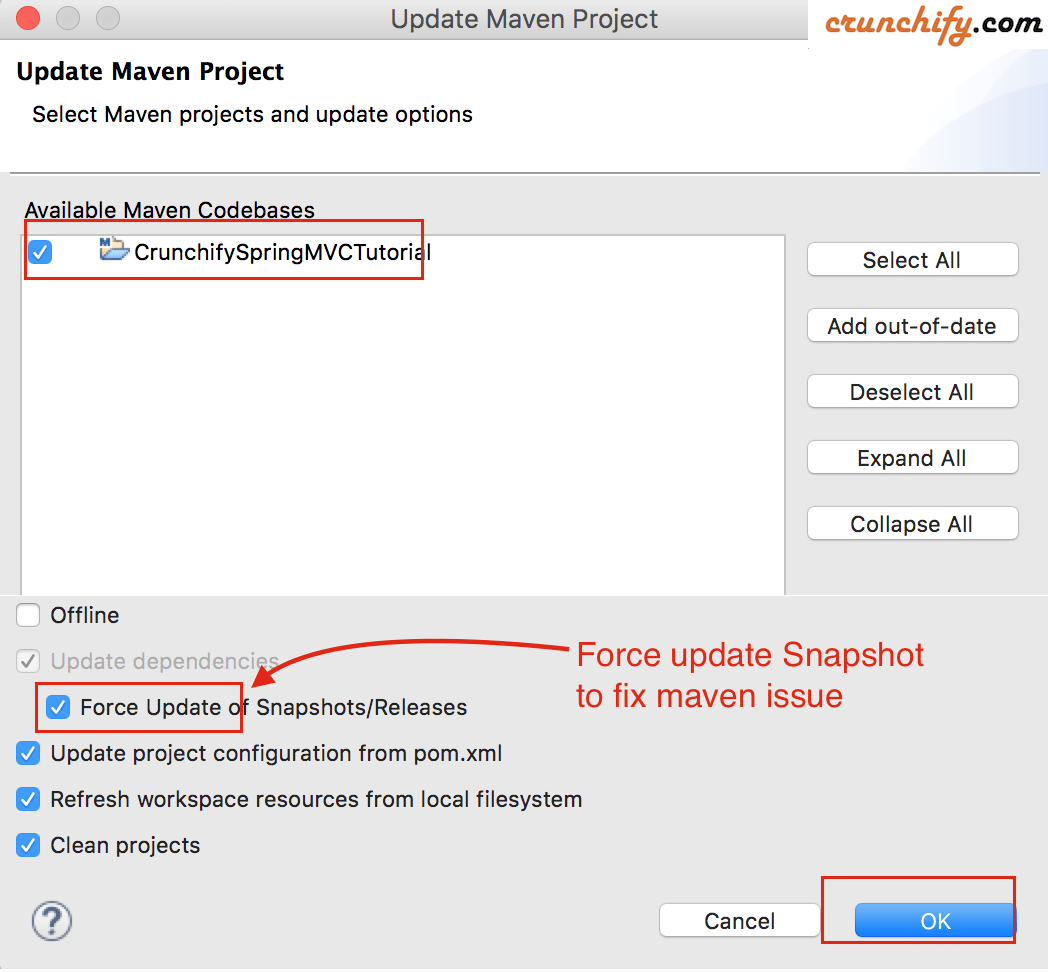
而已。 执行上述步骤后,Eclipse 将在 settings.xml 文件中提供的路径下导入所有项目依赖项。 导入过程完成后,您不应在 Eclipse 中看到任何编译问题。 根据您的项目依赖项和 Internet 下载速度,依赖项导入过程可能需要大约 5 分钟到 30 分钟。